How to Auto Drive in GTA 6
GTA 6 lets Jason or Lucia take the wheel automatically once you set a waypoint and switch to Cinematic Camera, letting you sit back while the car drives itself to your destination.
Source: VGC ↗
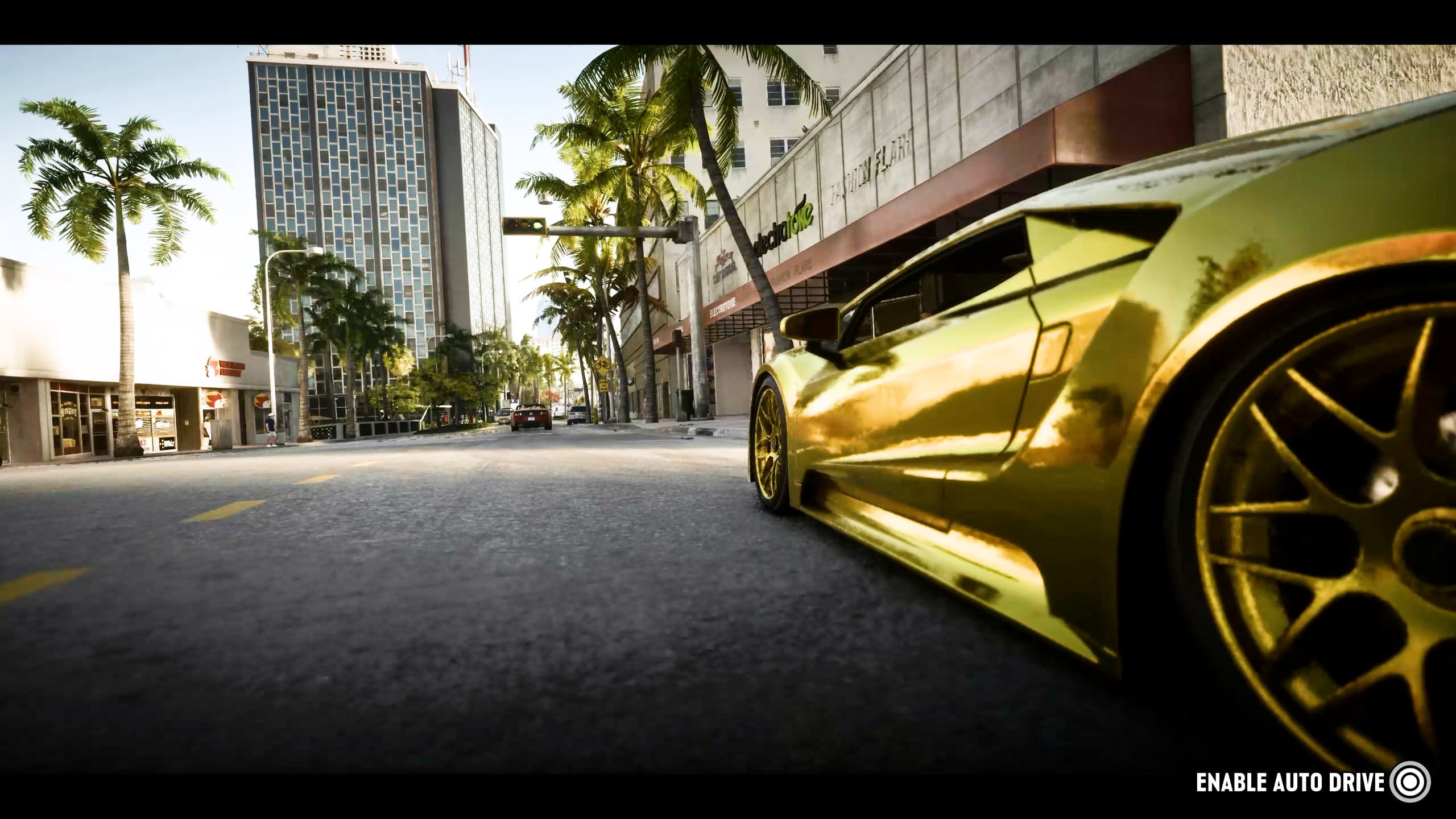
Auto Drive in GTA 6 lets you hand control of your vehicle over to Jason or Lucia so they steer, accelerate and brake automatically toward a waypoint you've set on the map, freeing you from manual driving on long trips across Vice City and Leonida.
TL;DR
- Set a waypoint on the map and get into a vehicle before trying to activate Auto Drive.
- Hold Down on the D-pad to open camera options, then press Start to enter Cinematic Camera mode.
- Hold Circle on PS5 or B on Xbox when the Enable Auto Drive prompt appears in the bottom-right corner to activate it.
- Once active, you can still speed up or slow down, but the car won't travel as fast as when you drive manually.
- If you skip activating Auto Drive after entering Cinematic Camera, you're still manually controlling the car, which can lead to crashes.
Requirements
- You need an active waypoint set on your map before you can engage Auto Drive.
- You must be inside a vehicle and already driving when you start the process.
- A controller is required for this, since the steps involve the D-pad, Start button, and Circle/B inputs.
Chapter unlocks
No chapter-specific unlock is confirmed by the supplied evidence.
Activate Auto Drive
- Open your map and place a waypoint at the destination you want to reach.
- Get into a car and start driving as you normally would.
- Hold Down on the D-pad to bring up the camera options menu.
- Press the Start button on your controller to enter Cinematic Camera mode.
- Watch the bottom-right corner of the screen for the Enable Auto Drive prompt.
- Hold Circle on PS5 or B on Xbox to turn on Auto Drive.
- Once it's active, Jason or Lucia takes over steering, accelerating and braking and drives automatically toward your waypoint, letting you sit back for the rest of the trip.
Adjusting speed and avoiding the common mistake
- While Auto Drive is running, you can still press the accelerator or brake inputs to speed the car up or slow it down, though it never matches the speed of driving manually yourself.
- Make sure you actually complete the final hold-Circle-or-B step after entering Cinematic Camera; entering Cinematic Camera alone does not activate Auto Drive, and you'll still be steering the car by hand even though the camera has changed.
Restrictions and troubleshooting
- Auto Drive travels noticeably slower than manual driving, so it's better suited to casual trips than time-sensitive ones.
- Entering Cinematic Camera mode does not by itself turn on Auto Drive, a mix-up that can cause you to crash while thinking the car is driving itself.